One of the nice features of Legacy is that it can provide you with a lot of information about your data in the form of numbers and charts in Statistics.
The image below show where you find Statistics in your Legacy program. It is under the Tools tab and then near the end of the Tools ribbon you will see the Statistics icon.

What kinds of things can you learn from Statistics??
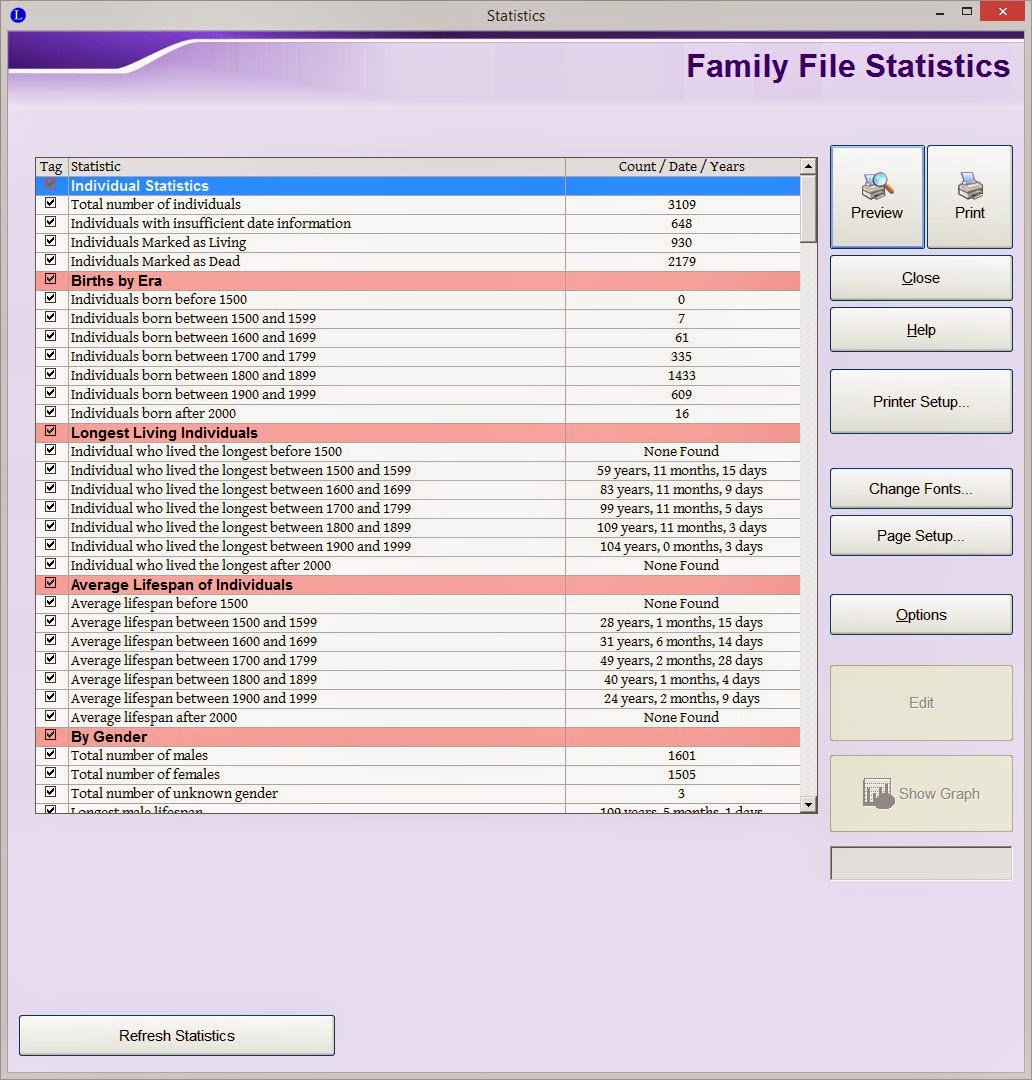
The image below shows what my database file look like in Statistics when I opened it today. You can get lists of the most popular surname, the most popular given name, the most popular locations, etc. As you click on the items in the list you will see the Show Graph, Create Search List, and other buttons become available near the bottom right of the screen. (See image below)
The image below show what one of the graphs look like. There are a few different options for the type of graph you want to see. (I'm not big on their color choices and I don't see a way to change them).


The image below show where you find Statistics in your Legacy program. It is under the Tools tab and then near the end of the Tools ribbon you will see the Statistics icon.
What kinds of things can you learn from Statistics??
The image below shows what my database file look like in Statistics when I opened it today. You can get lists of the most popular surname, the most popular given name, the most popular locations, etc. As you click on the items in the list you will see the Show Graph, Create Search List, and other buttons become available near the bottom right of the screen. (See image below)
The image below show what one of the graphs look like. There are a few different options for the type of graph you want to see. (I'm not big on their color choices and I don't see a way to change them).
In March of last year I used the statistics for a Saturday Night Genealogy Fun mission from Randy Seaver at Genea-Musings on this blog post.
I decided that I wanted to keep track of certain things in my database after that post as a way for me to measure my progress. I used Microsoft Excel to create two worksheets for showing some of my numbers.
The next two images below show how many ancestors I have found in each generation up to 15 generations for both were done on 20th of January; one in 2014 and the other in 2015. I have two of these one for my direct ancestors and another one for my husband's direct ancestors. (These were created by doing an Ancestor report and counting how many ancestors were in each generation.)
In the last image I have a comparison between certain data points in 2014 and 2015. It is interesting to me to see what has been added .
My plan is to track this information on a regular basis. I have set up a note in Evernote (in my To Do notebook) with a reminder to check out my Legacy statistics. I am going to go for every three months for now but I think it will be more like every 6 months.
How do you use Legacy Statistics??
Comments
Post a Comment