C is for Census


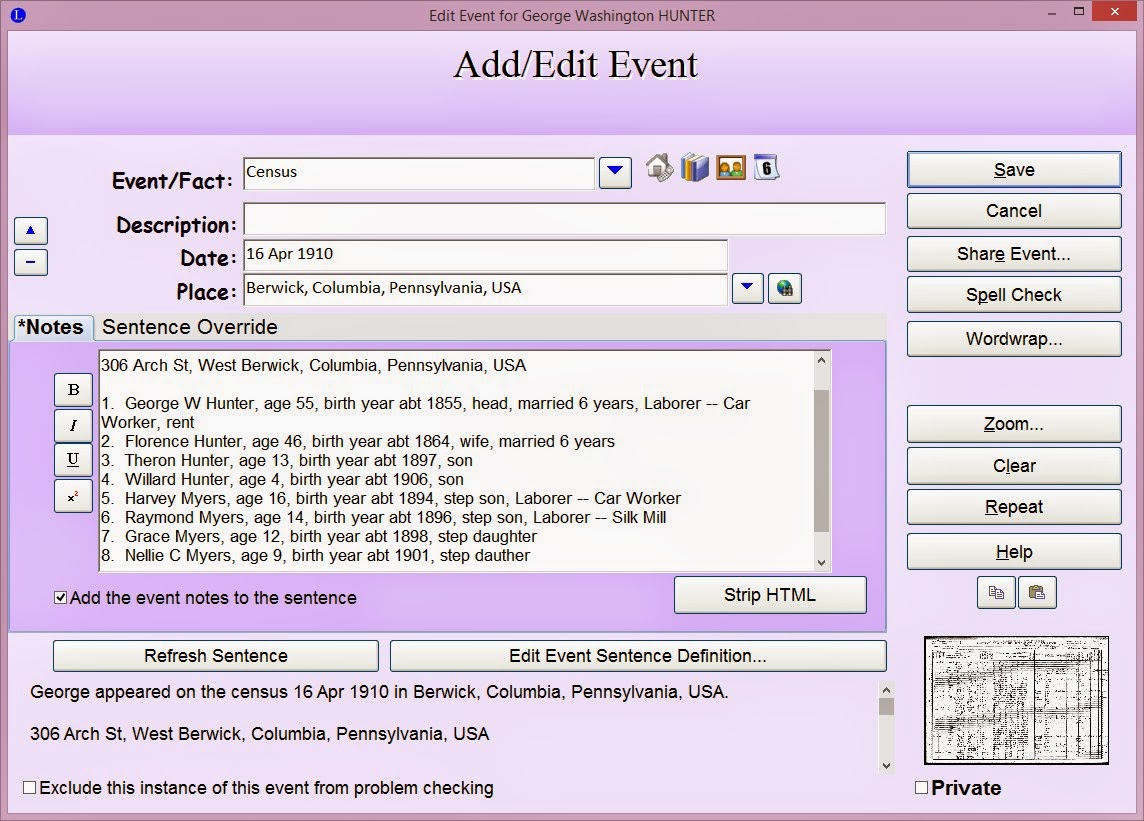
For each person in my database I add every census that they appear in.  The census information is put in a Census Event/Fact in the head of household's Event/Fact area and then is shared to each person in that Census.  The image of the Census page is downloaded to my computer and saved, for example, as         George Washington Hunter(1260) -- 1910 Census and it is in the Hunter surname folder; it is also attached to the Census event in Legacy.


This image shows the Census' in George Washington Hunter's Individual Information screen marked
with a green arrow.  The icons in the green circle show that the Event/Fact is
shared, sourced, and has an image attached.

The Census information was transcribed in the notes section of the Census Event/Fact for each
person in the household listed on the Census.

In Florence Lewis Hunter's Individual Information screen you can see the Census Event/Fact,
marked with the green arrow, in her Event/Facts section.  The blue arrow means that it was shared and the
Event/Fact title shows that it is a Census and her role is Wife.

This is Willard Milton Hunter and in his Event/Fact section you can see that the Census,
marked with a green arrow,  was shared with him and his role is Son.

Using shared Event/Facts saves me a lot of time when adding information to my database.  Not all of my Census information is done like this because it was an added feature after I started using Legacy.  When I come across an individual that does not have all of their Census information done with shared events I will fix it at that time.  I tagged everyone in my database on tag #9 and then as the Census information is fixed and all of their sources have been added I will untag them from #9.

What does D have for us tomorrow...check back to find out!


Comments

Popular posts from this blog

Evernote Quick Tip -- Keyboard shortcuts

Evernote has some keyboard shortcuts to help you get information into Evernote quicker.  The following shortcuts are for Windows Desktop : Function Shortcut Create a new note Ctrl + N Create a new notebook Ctrl + Shift + N Paste the contents of the clipboard as a new note Ctrl + Alt + V Paste from the clipboard with unformatted text Ctrl + Shift + V Paste from the clipboard with original formatting Ctrl + V Create a new tag Ctrl + Shift + T Check spelling F7 Insert a check-box Ctrl + Shift + C Create a bulleted list Ctrl + Shift + B Create a numbered list Ctrl + Shift + O Insert a horizontal line Ctrl + Shift + - To center text Ctrl + E Add a hyperlink Ctrl + K Remove a hyperlink Ctrl + Shift + R Create a new saved search Ctrl + Shift + S Reset search Ctrl + Shift + A Rename a saved search F2 Find in Evernote Win + Shift + F Start screen capture mode. (You can use the Web Clipper to get a screen capture from a website or you can right ...

OneNote | A Look Inside

I still have a few more notes to move over from Evernote but I am loving OneNote.  I keep to do lists, goals, projects, ideas, genealogy research and so much more in OneNote.  So what does my setup look like?  Lets take a look! {I usually use OneNote 2016 but I have tried the Windows 10 app and it works just as good.} The first screen shot below is OneNote 2016 and the second is from the Windows 10 app.  My first notebook is my task management notebook.  In this notebook I have my Inbox, which is my default section for incoming stuff, calendar and lists.  {Emails that I have sent to OneNote and screen clips go in my Inbox section.} The next notebook is for my blog, and then the Genealogy notebook is for research notes, then I have the GBT notebook which I use for notes and reminders for GeneaBloggersTribe, the Reference notebook is for things that don't belong in one of the other notebooks,  and the last notebook is the Archive. Let...

Simplify Your Life

While reading some stuff on a few websites I came up with a list...that I plan to add to and change...to simplify my life. Take a moment each day to be greatful Make sure to plan time for a vacation each year--give yourself a break and relax Make time for yourself Make goals --Keep a list and update as needed Get organized --will reduce stress Clean out/Throw out --if you're not using it get rid of it by donating, selling, etc. " Declutter "--set some guidelines--once a week, once a month, etc.--go room by room and remove the clutter To do list--helps keep things in "check"--If you don't get it done today dont't stress...just move it to the next day. **I just started this today--I made a list of the things that I need/want to do. I am checking them off as I go. I have a notebook by my computer and I am going to do it for each day...so far it is really helping--4 things checked off already. I am putting both household stuff and scrapping s...